
How to Verify a Google Business Profile in 2026 (Australian Guide)
Verifying a Google Business Profile in 2026: what Google checks now, how to pass video verification on the first try, and what to do when it fails.

Verifying a Google Business Profile in 2026 isn’t the postcard-and-PIN exercise it used to be. For most Australian businesses setting up a new profile, and for a growing share of established ones that get pulled back in after an edit, the gate is now a single, unedited video showing your premises, your signage, and proof you actually run the business. Get the video wrong and your listing stays off Google Maps until you fix it.
We set up and recover Google Business Profiles every week through our GBP reinstatement service, 295 of the last 300 Australian reinstatements since early 2025, so we see what passes and what fails on the current system. This is what we tell clients before they hit the verify button.
Am I Already Verified?
Before you do anything else, check the obvious. Sign in to the Google account that created the listing, search your business name plus your suburb, and look at the profile that loads. A “Get verified” button on the dashboard means you’re not verified, or you’ve been bumped into re-verification. No button, and you can edit name, hours, services and photos without Google asking for anything, you’re verified, you’re done with this guide, go read our complete GBP optimisation guide instead.
If you can’t find your profile at all, you may need to add it first or claim it. Google’s verification doc walks through that initial step.
What Google Actually Checks Now
Verification in 2026 is no longer about confirming a postal address. It’s about confirming three things at once: that the address exists, that your business operates from it, and that you are entitled to manage the listing. Those three checks used to be handled by separate signals (postcard, phone, owner email). Now they’re collapsed into one process, usually a video, and the trust signals get weighted together.
Sterling Sky’s Colan Nielsen frames this as the three boxes any video has to tick: the location of the business, the equipment it needs to operate, and your association with it. Miss any one and the rejection lands.
A few practical consequences:
- Google cross-references what you submit against street view imagery, registered business records, the Australian Business Register, and the digital footprint of the business name. Mismatches across any of those add friction.
- Service area businesses (SABs) face the most scrutiny because they’re the most-spammed category. Locksmiths, plumbers, electricians, towing, garage doors, water damage, rubbish removal, you’ll be asked for more proof, more often.
- Once you’re verified, the same triggers that cause new-profile verification, an edit to the business name, address, phone, URL, or category, can drop you straight back into re-verification on an existing listing. This is the part most owners don’t realise until it happens.
Clear, continuous, well-shot videos pass. Anything ambiguous gets rejected, often without a useful reason.

Does It Cost Anything?
No. Every method, every time, free. Google has never charged for verification.
If anyone offers to “expedite” yours for a fee, walk away. They can’t expedite anything, they’re running the same process you would, just on your behalf. Search Scope only handles verification as part of broader reinstatement or optimisation work; we don’t charge for the basic verify-your-own-business flow that this article exists to walk you through.
The Methods That Exist in 2026
Google still lists several verification methods. Whether you actually get offered them depends on category, country, business history, and how the algorithm feels about your profile that morning. Google’s own doc is explicit: “Verification methods are automatically determined by Google and can’t be changed.”
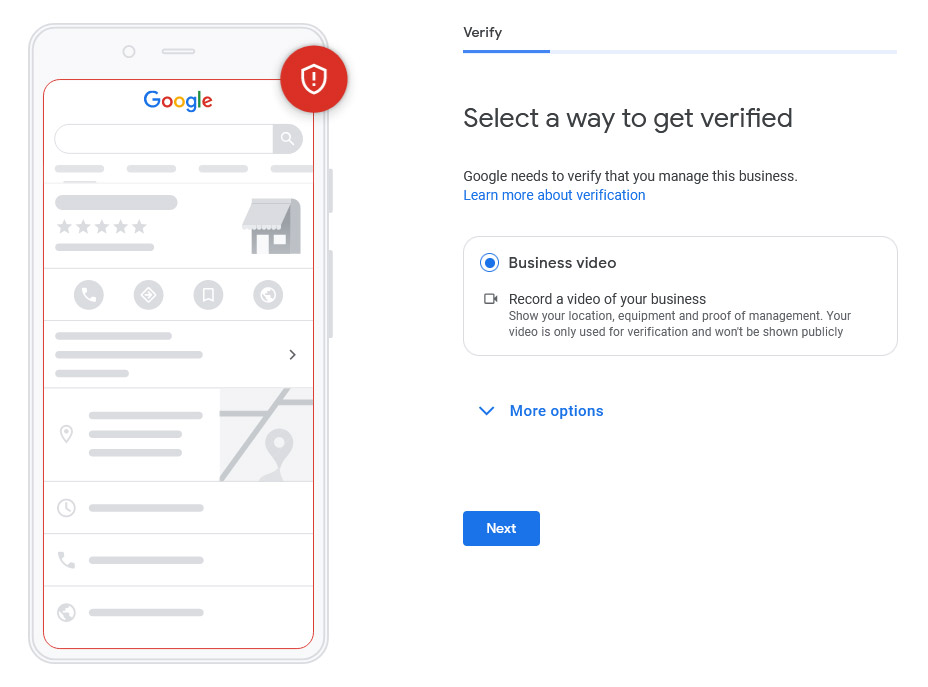
Video verification. The default in 2026 for most new profiles and almost all SABs. Recorded on a mobile device through your Business Profile, uploaded directly. If you’re offered it, take it, fighting for an alternative usually wastes a week.
Phone or SMS. Sometimes offered for businesses with a publicly listed landline that matches existing records. Google sends a code via call or text; you enter it on the profile. Fast when you get it. Note: interactive voice response (IVR) systems can’t receive the code, so a switchboard or phone tree won’t work.
Email. Occasionally offered when the business email domain matches the website domain on the profile. Common for Google Workspace-linked accounts.
Live video call. A support representative joins a video call during your business hours and you walk them through the location in real time. Less common, but offered if recorded video isn’t an option.
Postcard. Still documented by Google, but rare in current Australian casework. Google notes that verification through postcard isn’t available for all businesses and that the options you get depend on your business type, public info, region and hours. If it is offered, allow a couple of weeks, and don’t edit the profile while you wait.
If the postcard never arrives. This is one of the most common GBP Help Community threads. The protocol we use: give it a fortnight before doing anything, since postal delays, holidays and regional routing all stretch it. Then check the address you entered, character for character including suite, unit and postcode. If it’s correct, request one more postcard, and only one more. Repeated requests are not a route back in, and Google decides the method anyway: its documentation is explicit that “verification methods are automatically determined by Google and can’t be changed”. Switch routes instead: use Google’s Business Profile Help form to ask for video verification or a live video call, and reference the prior postcard requests in your message. Don’t open a new profile to “start fresh”, that creates a duplicate, which is its own problem.
Instant verification. Reserved for businesses whose website is already verified in Google Search Console under the same Google account. Useful in theory; in practice, Google often still triggers a video later anyway when something on the profile changes.
Bulk verification. For agencies and franchises managing 10+ locations under one brand. Requires an application via Google. Slower upfront, faster at scale.
Review takes up to 5 business days for any method.
| Method | Who it’s offered to | Typical turnaround | What we tell clients |
|---|---|---|---|
| Video | Most new profiles, all SABs | Up to 5 business days | Take it. Don’t fight for an alternative. |
| Phone / SMS | Listings with a matching public number | Same day to 24 hours | Quick if offered; IVR won’t work. |
| Profiles where business email = website domain | Same day to 24 hours | Confirm before relying on it. | |
| Live video call | Edge cases when recorded video isn’t an option | During business hours | Treat it like the video shoot, same prep. |
| Postcard | Rarely offered now | About a fortnight | Don’t edit the profile while waiting. |
| Instant | Search Console-verified websites | Immediate | Often retriggered later. Don’t rely on it alone. |
| Bulk | 10+ locations under one brand | Days to weeks | Worth it for franchises. |
If Google offers you video, don’t waste time looking for an “easier” path. The path of least resistance is to shoot a clean video once.
How to Nail Video Verification on the First Try
The single most common reason for video failure isn’t fraud, it’s a shaky, edited, or ambiguous clip that doesn’t clearly tie you to this address running this business. Treat the video as a documentary, not a TikTok.
Before you start recording, open your Business Profile in another tab so you can read the prompts Google gives you. The prompts vary by category. A restaurant gets asked to show different things to a mobile mechanic. Read what’s asked and shoot to that brief.
Universal rules, straight from Google’s video recording requirements:
- One continuous shot. No cuts, no edits, no slideshows.
- At least 30 seconds long. Google publishes no maximum, and the house rule we use is two to three minutes, long enough to cover the brief without padding.
- Recorded and uploaded from a mobile device through your Business Profile, you can’t record offline and upload later.
- Hold the phone steady. Use both hands or a gimbal.
- Don’t include other people’s faces, bank account details, tax numbers, or ID numbers in the frame.
- Audio doesn’t need to be perfect, but you can narrate (“this is the front of our shop at 42 Smith Street”).
- You do not need to show your own face. Google wants to see the premises, signage, and operational proof, not you personally.
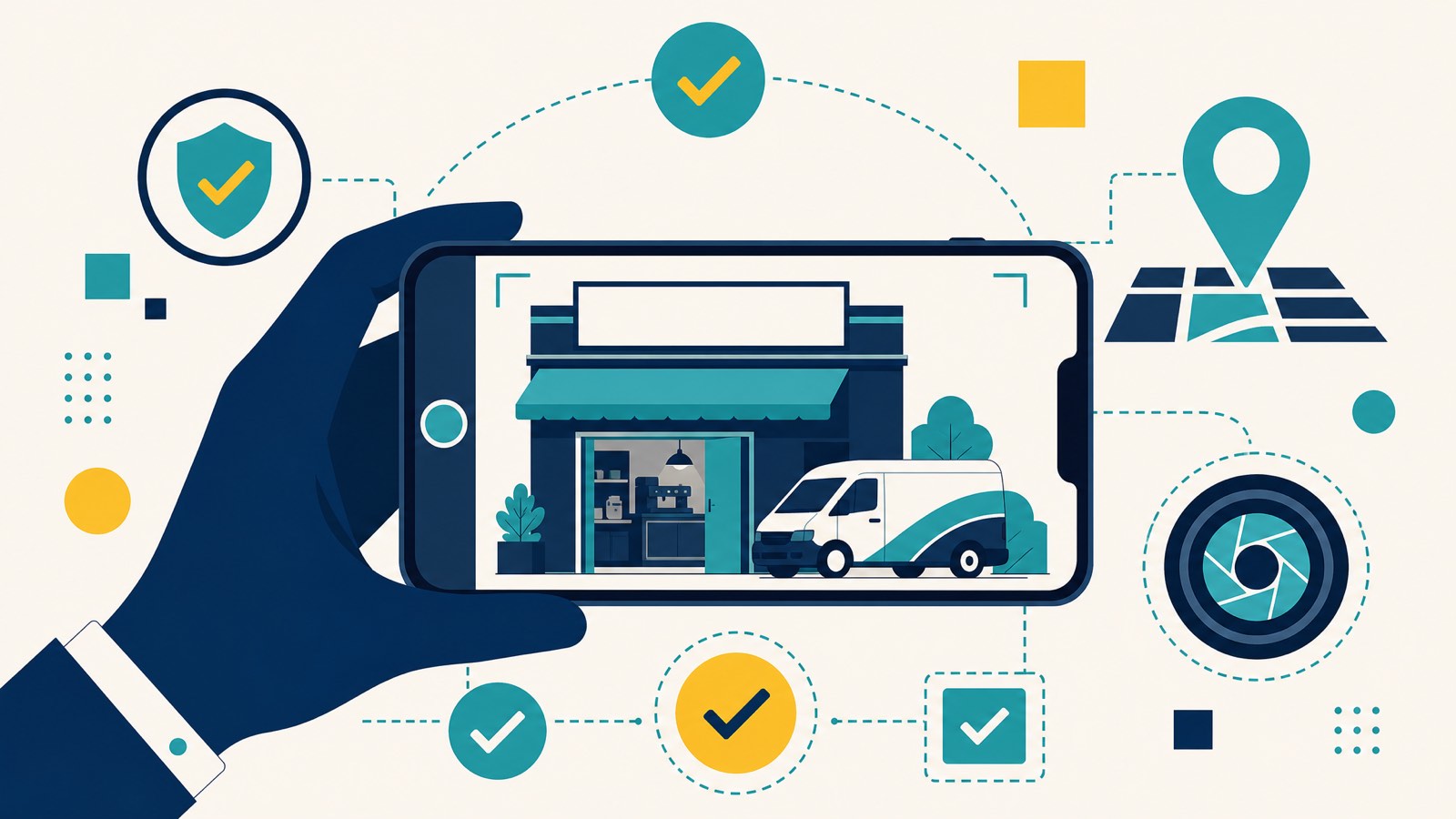
For a bricks-and-mortar (storefront or hybrid) business
- Start outside on the street, showing the street sign and the building number.
- Walk to your entrance, keeping branded signage visible. The business name must be on a permanent fixture, signboard, wall, or window, and must match what’s on the profile.
- Open the door yourself with your own key (this proves access, which proves authority).
- Walk through the workspace, show equipment, branded uniforms or merchandise, point-of-sale, anything that ties the space to the business name.
- Briefly show a piece of business paperwork on screen, an invoice, supplier letter, or business registration with the address visible.
For a service area business (no public storefront)
This is where most rejections happen. SABs don’t have storefronts, so Google leans hard on alternative proof.
- Start outside at your registered address. Show street signs, building numbers, or nearby landmarks. If you operate from home, film signs and landmarks in your immediate neighbourhood, Google’s doc explicitly allows this.
- Show branded vehicles with the business name and signage clearly visible. The wrap or magnetic signage is essential; the number plate is optional.
- Unlock a branded van or open a locked toolbox, Google’s documentation specifically calls out unlocking a branded van as proof of management.
- Show tools of the trade, a sparky’s testers, a plumber’s van fitout, a builder’s site setup. If you’re filming a recent job site, do it without breaching client privacy.
- Show business paperwork on screen, a business permit, a recent invoice, or a utility bill that matches the name on your Business Profile.
The honest read: for SABs, Google is trying to distinguish you from a fake lead-gen listing run by an agency two suburbs away. The more your video says “real human, real tools, real address, real work,” the cleaner the pass. The rejections we see most often on Australian SABs come back to the same three things, no exterior signage shown, the address in the video didn’t match the address on the profile down to the suite number, or the operator didn’t visibly access something only the business owner could (a locked van, a tool cabinet, a back room).
Pre-Shoot Readiness Check
Before you hit record, run this. Tick everything that’s genuinely true right now, and the tool will tell you whether you’re ready or what to fix first.
Pre-shoot readiness check
Documents to Prepare Before You Click “Verify”
Have these ready in a folder on your desk before you start. Stopping mid-flow to dig out paperwork is how appeals get fumbled.
- Business registration: your ASIC business name registration, downloaded as the official “Record of Registration” PDF (not an extract or a screenshot), with the legal name and address matching your profile. This is the document Google weights most.
- A recent business utility bill or invoice showing the business name and the address on the profile. Google sets no published recency window here, but we submit documents from the last three months so nothing looks dormant. Phone, internet, electricity, gas, lease invoice, or council rates notice all work. Two beats one.
- Industry licence if your category requires one: electrical, plumbing, real estate, financial services, medical (AHPRA), security, food handling. Google will ask if your category is regulated.
- Lease agreement or rates notice to anchor a storefront, and worth including whenever you’ve moved recently.
Keep it to what Google actually wants. You don’t need photo ID, an ABN extract, tax documents, or insurance certificates, and piling them on tends to introduce mismatches rather than strengthen your case. The pattern Google looks for is the same business name and the same address appearing in multiple independent documents. Tiny formatting differences cause rejections: “Suite 4, 123 Smith St” on one document and “4/123 Smith Street” on another will get flagged. Standardise the format across everything, and keep it identical to the address shown on your profile.
Address Rules, What’s Verifiable, What Isn’t
Address is where most verification attempts die.
Verifiable:
- A permanent commercial premises you lease or own, with signage visible from the street.
- A home address, if you set the profile up as a service area business with the address hidden and only show your service areas. Google’s limits here are published: you can have up to 20 service areas, and “the boundaries of your overall area shouldn’t be more than about 2 hours of driving time from where your business is based”.
- An industrial unit, warehouse, or yard with operational signage.
- A coworking space, but only on Google’s terms, and most setups fail them. Google’s guidelines say a business “can’t list an office at a co-working space unless that office maintains clear signage, receives customers at the location during business hours, and is staffed during business hours by your business staff”. A hot desk, a mail agreement, or a room you drop into occasionally meets none of that. Treat coworking as ineligible unless all three conditions genuinely hold.
Not verifiable:
- Virtual offices, mail-forwarding services, or “receptionist” addresses sold as business addresses. Google has the major providers flagged.
- PO boxes.
- An address you don’t lawfully occupy.
- A residential address listed as a public address (it has to be hidden as an SAB).
If you’re a tradie, a consultant, or any kind of service business that visits clients, your profile should be set up as an SAB from day one. Do not list a residential address publicly. Be straight about the trade-off: Whitespark’s 2026 Local Search Ranking Factors report added “address is showing on GBP (not SAB)” as a new local pack factor, so a hidden address is not free. It is still the right call, because in our casework a residential address listed publicly is one of the most reliable ways to get suspended later, and a suspended profile ranks nowhere at all.
When Verification Fails, Diagnosing What Went Wrong
If your verification gets rejected, Google’s message is almost always unhelpful. “We couldn’t verify your business” doesn’t tell you why. Diagnose by elimination.
First, decode which screen you’re seeing. Sterling Sky’s Colan Nielsen breaks down the three states you might land on after submitting a video:
- “Review issues” notification on your profile. Your video was rejected and Google is telling you why. Tap the warning to see the specific reason. This is the most useful outcome, fix the named issue and re-shoot.
- “Get verified” button reappears with the video option still available. Your video failed but Google isn’t telling you why. Watch the video back yourself; the gap is usually obvious in hindsight.
- “Get verified” button reappears but you’re now being offered a different method. Counterintuitively, this often means your video was accepted, and Google now wants a second signal. Follow the new prompt.
Then walk through this diagnostic checklist:
- Address mismatch. Compare the address on the profile, character for character, against your business registration, your utilities, your lease, and Google Maps’ own street view of the location. Most rejections trace back to a unit number, comma, or street-type abbreviation that doesn’t match across documents.
- Category mismatch. Some categories trigger heavier verification. If you picked a high-spam category (locksmith, towing, garage door, water damage, rubbish removal), expect more friction even when everything else is right.
- Video gaps. Did you actually show the signage, the entrance with key access, and proof of operational activity? Watch your own video back. If you can’t tell from it that this is your business at this address, neither can Google.
- Owner identity. Is the Google account you’re verifying from connected to anything that ties to the business, a business email, a Search Console verification, a YouTube channel? A brand-new personal Gmail managing a brand-new listing is the highest-friction setup.
- Duplicate profiles. If a second profile exists for the same business at the same address, Google may reject both. Search Google Maps for your business name and any common misspellings before you do anything else, then remove a duplicate business listing before you resubmit.
After a failed attempt, wait 24 hours, fix the specific problem you’ve identified, and resubmit through the same flow. Don’t open a new profile, that creates a duplicate, which makes everything worse. Don’t keep resubmitting the same flawed video; you’ll burn through your attempts and end up needing a support escalation to recover.
If you’ve already had multiple rejections, or you’ve been suspended outright, you’re past the DIY stage. This is the work our reinstatement service handles.
”No More Ways to Verify”, What to Do
If you submit one or two failed attempts and Google then shows the message “No more ways to verify”, you’re not stuck. Joy Hawkins documents the recovery path: contact Google Business Profile Support directly through support.google.com/business/gethelp. They are the only ones who can look at a locked verification flow, whether that means reopening it or handling a video upload the automated system rejected. The community forum can’t help with this, only Support can.
Don’t open a duplicate profile to “start fresh”. You’ll trigger a different kind of suspension and lose any history attached to the existing listing.
What Triggers Re-Verification on an Existing Profile, the 5 Kings
Getting verified is the start, not the finish. The next month is when most owners accidentally trigger a re-verification request, or worse, a suspension, by over-editing the freshly verified profile.
There are five fields Google watches closely. We call them the 5 Kings: Name, Address, Phone, URL, and Categories. Editing any of them on a freshly verified profile dramatically increases the chance of being kicked back into verification or suspended outright.
Google’s own help doc is direct about this: if business details have been recently updated, Google may request more details or ask you to update your info, which is the polite way of saying you’re being re-verified.
Practical rules for the first 90 days:
- Don’t touch the 5 Kings unless you absolutely have to. If you must, do it through a front-end edit (search your business in Google Maps and use the “Suggest an edit” flow) rather than the back-end dashboard. Our guide to front-end edits on GBP explains why we keep every change on the front end while a profile is under review.
- Upload your photos in batches over several days, not 50 at once.
- Add your services, products, and business description, these aren’t the 5 Kings and are safe to edit.
- Respond to any existing reviews.
- Publish a first Google Post to show the profile is active.
- Space out edits across several weeks.
If you want a full pre-launch checklist, our complete GBP optimisation guide and the avoid-suspension guide cover the cadence we use with clients.
NAP consistency across the rest of the web also matters from day one, Google triangulates against external citations. Our post on NAP consistency in local SEO explains the trap most owners fall into.
The 2026 “Updates to How We Verify” Email, and What It Actually Means
In March 2026 business owners started getting an email titled “Updates to how we verify your business details” and assumed another video was coming. It isn’t. The send was global rather than Australian, and it was odd enough that practitioners flagged it publicly, because it arrives the same way scam outreach does.
What Google rolled out is automated profile-update outreach. As documented in their help centre, Google may now contact your verified phone number through call, SMS, or WhatsApp to confirm details like operating hours, services, or in-demand inventory. Anything you confirm gets added to your profile and marked “Pending” for up to 5 business days while a live supervisor reviews it.
A few notes for Australian context:
- WhatsApp is listed as a channel in Google’s docs, but in Australian casework we see calls and SMS far more often than WhatsApp.
- This is profile-update outreach. It is not verification outreach. Confirming your hours on a Google SMS won’t re-verify a failed video.
- If you don’t want the messages, reply STOP to opt out of SMS or WhatsApp. For calls, go to More > Business Profile settings > Advanced settings and turn off the toggles under “Google automated calls and text messages”. Google notes you may still get the occasional manual call to confirm business info after opting out.
- Make sure whoever answers your business phone knows these calls are real. Whatever they confirm gets added to your profile.
Treat the outreach as an opportunity to keep the profile current with minimal effort, but check the dashboard afterwards to see what Google added.
When to Get Help
The honest version: if you’re a single-location business with clean paperwork, a real address, and a quiet half-hour to shoot the video properly, you can verify yourself. The guide above is enough.
You should get help when:
- Your verification has failed twice and the rejection reason isn’t clear.
- Your profile has been suspended (the listing shows as “Suspended” in your dashboard, or has disappeared from Maps entirely).
- You’re an SAB in a high-spam category and you’re getting rejected despite legitimate proof.
- You’re a franchise or multi-location operator dealing with verification across many sites.
- You’re an agency managing 30+ listings and the volume of verification issues is its own workload.
Search Scope’s GBP reinstatement service handles exactly this work. We’ve recovered 295 of 300 Australian profiles since early 2025, a 98% success rate. The done-for-you tier is reinstated or refunded. Pricing (all incl. GST): $550 done-for-you reinstatement, with the fixed fee paid upfront and fully refunded if we don’t get the profile reinstated; $350/hr for reinstatement consulting where you want to drive the process and we advise; $999/hr for the advanced GBP risk and agency tier (agencies with 30+ profiles or franchises with 5+ sites). Most appeals are submitted within 24 hours of intake, and typical turnaround is 24 to 72 hours.
Dorian, in SEO since 2013, personally supervises every reinstatement. No account managers. No offshore teams. or start the onboarding form if you’d rather talk it through first.
FAQs
How long does Google Business Profile verification take in 2026? Google says up to 5 business days for review on any method. In our casework video and phone usually land inside one to three days when everything’s clean. A postcard, on the rare occasion one is offered, takes about a fortnight. Live video calls are same-day during business hours. After a rejection, allow 24 hours before resubmitting.
Does it cost to verify a business on Google? No. Verification is free, every method. Don’t pay anyone who tells you they can charge to expedite it.
Can I choose my verification method? No. Google’s help centre states that “verification methods are automatically determined by Google and can’t be changed”. The methods you’re offered depend on category, business history, region, and public information.
Can I verify with a home address? Yes, but only as a service area business with the address hidden. Listing a residential address publicly on Google Maps is the fastest way to get suspended later.
Do I need to show my face on the verification video? No. Google wants to see the premises, signage, and operational proof, not you personally. Don’t include other people’s faces either.
What if Google never offers me a verification method? That usually means the profile is in a holding queue because of a duplicate, a flagged category, or an inconsistency with another data source. Don’t open a second profile, contact Google Business Profile Support through your existing listing, or escalate via our reinstatement service.
Can I change my business name or address right after verification? You can, but the risk is high. Any edit to the 5 Kings, Name, Address, Phone, URL, Categories, on a recently verified profile is the single biggest trigger for re-verification or suspension. If you have to make a change, use the front-end “Suggest an edit” flow and wait a few weeks after verification before touching anything.
Why was my video rejected if everything looked fine? The most common reasons we see in practice: the address shown in the video didn’t exactly match the address on the profile; the video didn’t clearly show signage or operational proof; the business is in a category that requires extra documentation that wasn’t supplied; or the owner’s Google account had no prior digital footprint linking it to the business.
What’s that “Updates to how we verify your business details” email? It’s the rollout of Google’s automated profile-update outreach, calls, SMS, and WhatsApp messages from Google to confirm hours, services, and details. It’s not verification; it’s maintenance. Reply STOP to opt out of messages, or adjust the settings in your Business Profile dashboard.
Why did Google ask me to verify my business again? Because something on your profile changed, usually one of the 5 Kings (Name, Address, Phone, URL, Category) or because Google’s automated system flagged an inconsistency with another data source. Re-verification is a normal trust check, not a punishment.
The Honest Bottom Line
Verification in 2026 rewards businesses that look real and punishes ones that look ambiguous. Real address, real signage, real paperwork, one clean video, no over-editing afterwards, that’s the formula. Looking real to Google is also the whole point of local SEO for a service business, so the work carries well past this one step. The system isn’t trying to keep you out; it’s trying to keep the spammers out, and the spammers cut corners that you don’t have to.
If you’ve already been knocked back, or your profile has been suspended, don’t keep resubmitting the same video into the same algorithm. and we’ll triage it, or go straight to the GBP recovery service if you know you need it.