
Why We Only Recommend Front-End Edits on Google Business Profile
Dashboard edits to a business name or address keep triggering automated reviews. Why the Maps suggest-an-edit route draws less scrutiny, and when to use it.

If you change your business name, phone number, address, website URL, or categories from inside the Google Business Profile dashboard, you have a meaningful chance of triggering an automated review, and a smaller but real chance of waking up suspended.
We’ve reinstated 295 of 300 profiles since early 2025. That’s roughly the entire caseload my team and I have run through the door in the last 18 months. The same pattern keeps showing up in the case notes: a dashboard edit to one of five specific fields, then a suspension within two weeks.
We call those five fields the 5 Kings, Name, Address, Phone, URL, Categories (NAPUC). They are the high-voltage wires of every Google Business Profile, and the dashboard is the part of the house where the insulation has worn through.
This article is the doctrine we now teach every Search Scope client: for the 5 Kings, use Google Maps’ “Suggest an edit” front-end instead of the GBP dashboard. It is not a Google-stated policy. It is what we’ve observed across the caseload, and it is the safest editing pattern we’ve found.
Already suspended? Skip to If you’ve already been suspended further down. Don’t touch the dashboard until you’ve read that section.
The doctrine in one sentence
If you need to edit your business name, address, phone number, URL, or categories, use Google Maps’ front-end “Suggest an edit” flow, not the Google Business Profile dashboard. Everything else (hours, photos, posts, services, attributes) is fine to edit directly.

What “front-end edit” actually means
There are two ways to change information on a Google Business Profile (the platform formerly known as Google My Business, the dashboard has moved, the rules haven’t).
The dashboard. You sign in at business.google.com (or the profile-management strip inside Google Search) as the verified owner, click into a field, and save. Google logs the change against your owner account.
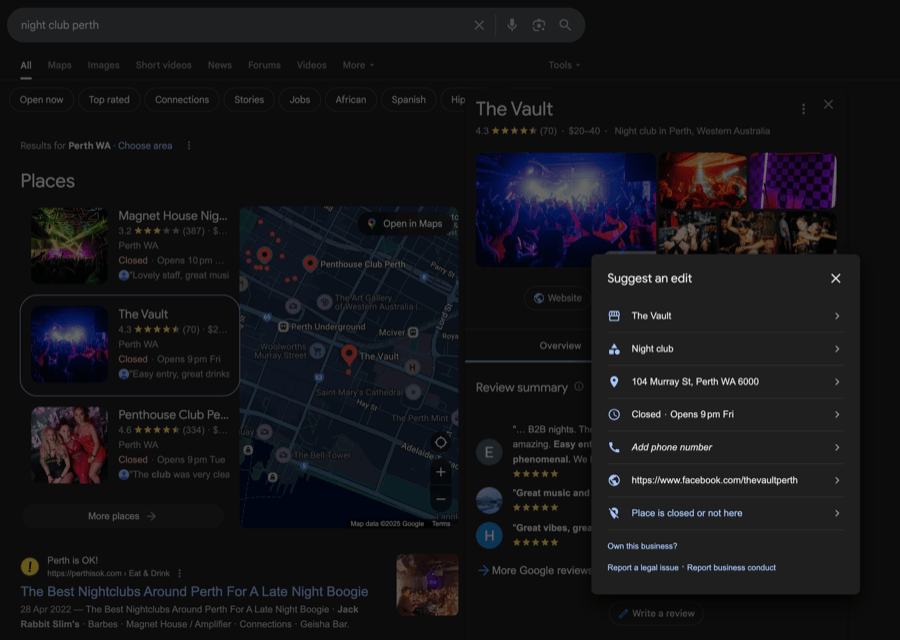
The front-end. You open Google Maps as a regular user, search for the business, scroll past the photos and hours, and tap “Suggest an edit”. You propose the change, Google reviews it, and either approves it automatically, holds it for human review, or rejects it.
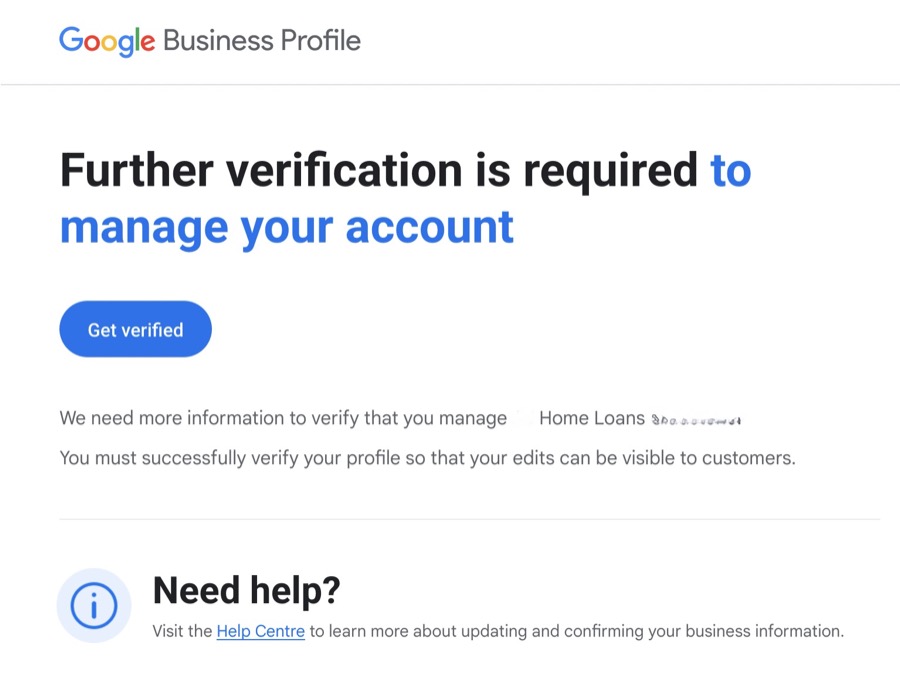
Anyone with a Google account can suggest a front-end edit. Google evaluates these submissions with a mix of automated and human review, and how “rejecting” an edit actually works is documented in Google’s guide to accepting or rejecting updates: there’s no dedicated reject button, the remedy is re-submitting your original value to overwrite the suggested change. Accounts with a Local Guide contribution history get processed faster and rejected less.
That asymmetry, owner-submitted edits scrutinised more than user-submitted ones, is the entire reason this doctrine exists.
Why dashboard edits keep getting people suspended
Here’s the pattern from our caseload.
Across the 300 reinstatements we’ve worked since early 2025, a dashboard edit to one of the 5 Kings in the fortnight before the suspension is the thing we most often find sitting in the case notes. We don’t log it as a countable field, so we’re not going to attach a percentage to it and pretend we measured it. It’s the first thing we look for, and it’s usually there. A solicitor adds a second practice area to her categories. A restaurant switches from a tracking number to a direct line. A trades business updates the URL after a domain migration. The edit saves, the business looks normal for a few days, then the profile drops off Maps.
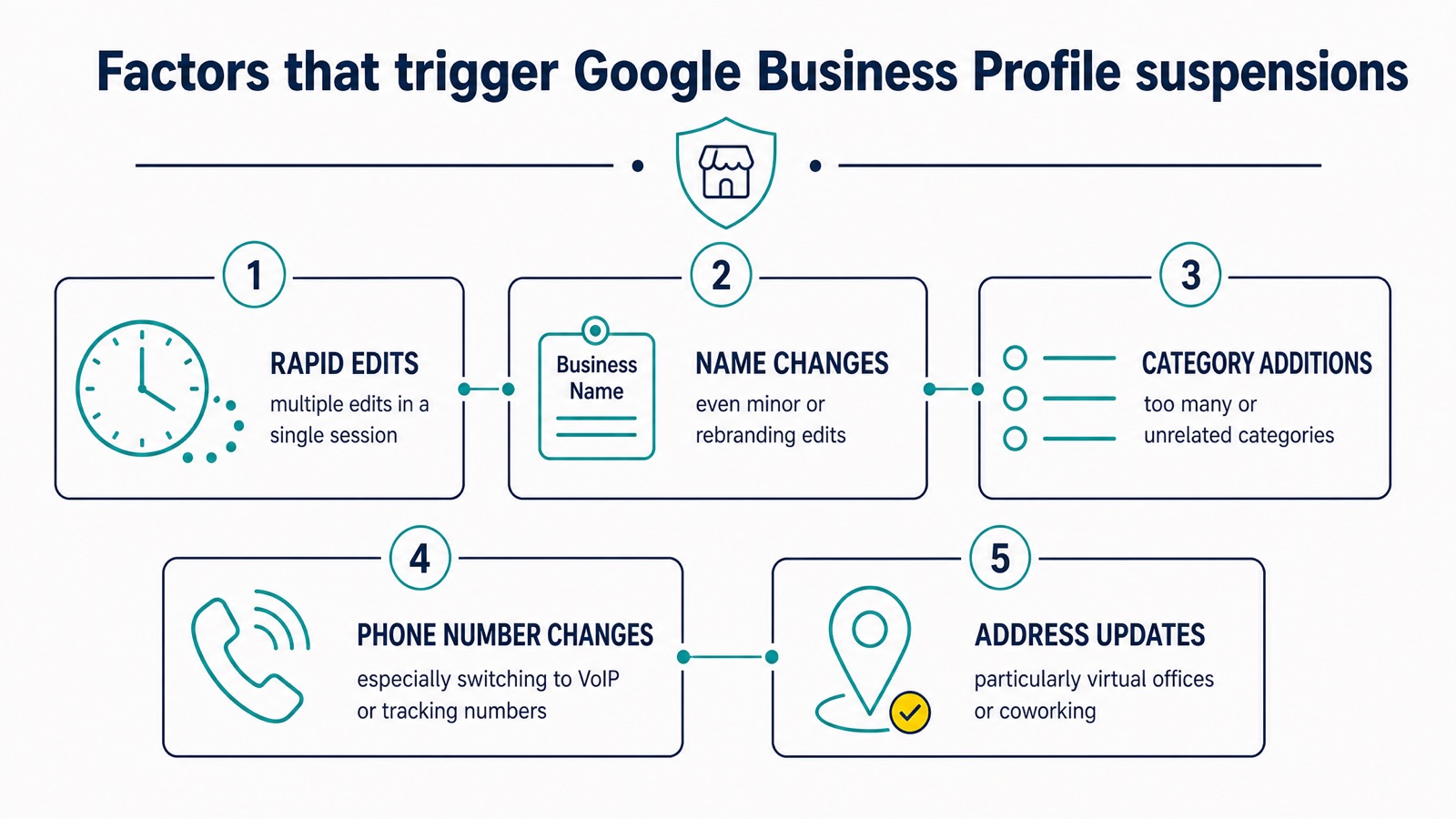
We see two failure modes:
- Soft suspension. The listing is still visible but loses its rich features, reviews can’t post, the verified tick disappears, rankings collapse. Recovery is usually 24 to 72 hours once we file the appeal.
- Hard suspension. The profile is removed entirely from Search and Maps. This is the version that costs businesses real money, every day a tradie is off Maps in their service area is roughly a day’s worth of phone calls evaporating.
We’re not the only people seeing this pattern. Sterling Sky’s data on Local Guide edits backs up what we see in our own caseload: front-end edits from trusted accounts move faster and cleaner than owner-side dashboard changes to the same fields. Google itself acknowledges in its suspension guidance that “minor” edits can prompt automated review when paired with other risk signals. We’ve also dug into the wider GBP suspension landscape in detail elsewhere on the site.
What I want to be honest about: Google has never said front-end edits are safer than dashboard edits. The doctrine is observed practice across our reinstatement caseload, not policy. After 295 successful reinstatements, the signal in the data is loud enough that we won’t recommend anything else.
The 5 Kings of your Google Business Profile
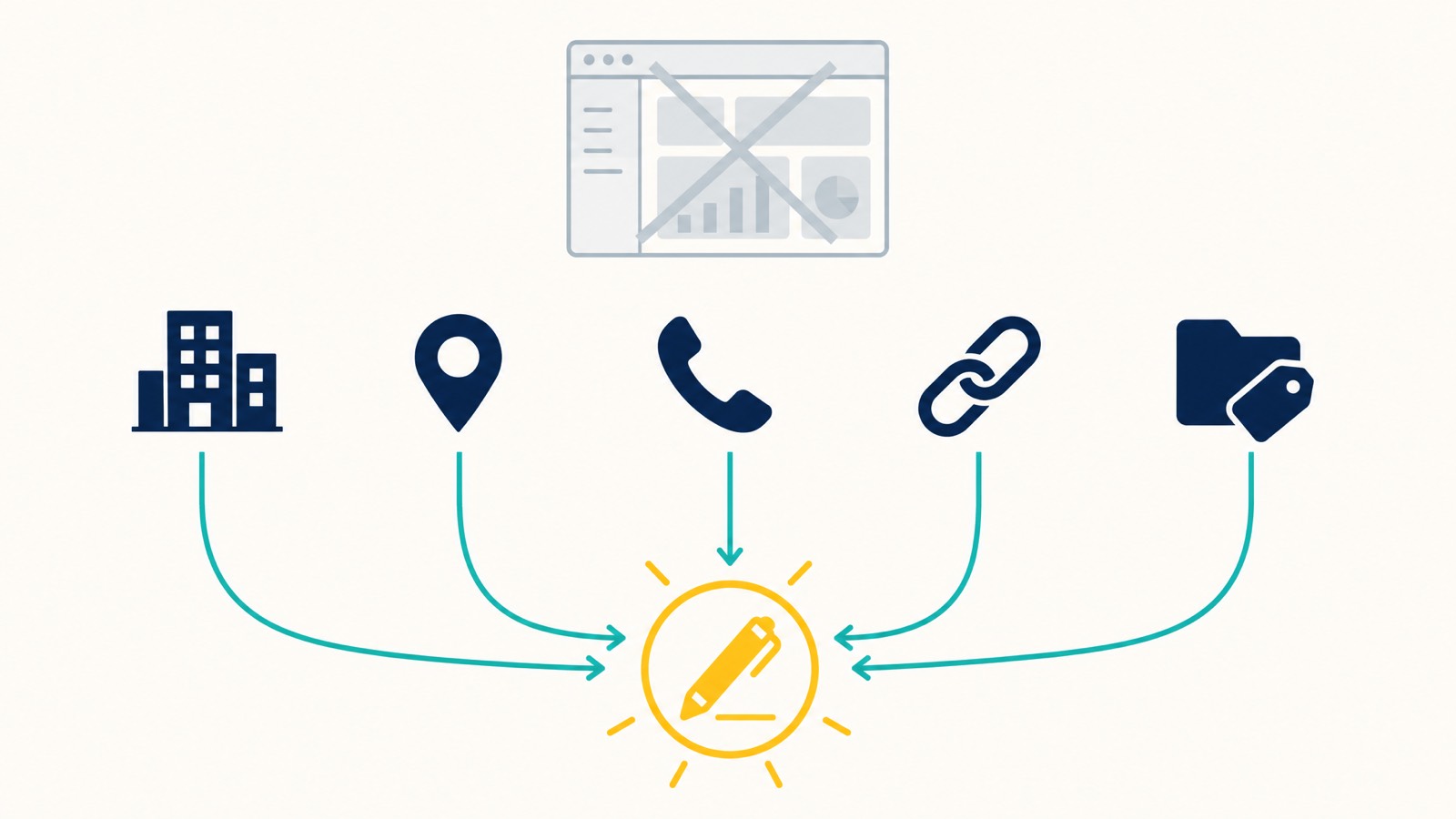
The framework we use internally is NAPUC. Every other field on your profile is a peasant. These five are the kings, and they’re the only ones we won’t touch from the dashboard.
Name
Your business name is the single highest-risk field. Any change here, even fixing a typo, risks an automated re-verification or a suspension for suspicious activity, which takes far longer to unwind than the typo took to fix.
The pattern is worst when the new name reads as keyword-stuffed (think “Plumber Joe” becoming “Joe’s 24/7 Emergency Plumbing Perth”). It’s nearly as bad when you’re switching between a trade name and a registered legal name. We’ve written a separate guide on how business name changes specifically trigger suspensions if you need more detail there.
Address
Two scenarios trigger reviews here: moves (you’ve changed premises) and clarifications (adding a suite number, fixing a typo). Both look identical to Google’s automated systems, same field, different value, possible spam.
Service-area businesses are even more exposed. Toggling between “I serve customers at my address” and “I deliver goods and services to customers” rewrites the address field under the hood, and that’s treated as an edit.
Phone number
Phone is the field where lazy migrations bite people. Switching from a landline to VoIP, dropping a tracking number into the field, changing the area code after a move, all of these have shown up in our suspension caseload.
If you must change the phone number, change it on your ASIC record and on a couple of major citations (your website, your Yellow Pages listing, your industry directory) before you change it on the GBP. Even then, do the GBP change from the front-end.
URL
URL changes are deceptively dangerous. Migrating from old-domain.com.au to new-domain.com.au is the obvious one. Less obvious: adding UTM parameters for tracking, swapping the homepage URL for a landing page URL, or pointing the GBP at a Linktree-style hub instead of your actual site.
Each of these registers as an edit to a NAPUC field and can prompt a review. If you’ve done a recent domain migration and the new domain is unfamiliar to Google, the risk is higher again.
Categories (especially primary category)
Primary category is the second most dangerous field after name. Changing your primary category is functionally rebranding your business in Google’s eyes, and the algorithm responds accordingly.
Adding a secondary category is lower risk, but still not zero. If you must add or change categories, do it via the front-end, and only after you have a clear paper trail (industry licence, a webpage that mentions the new service, a citation or two referencing it). Building that trail is ordinary local SEO groundwork, and it belongs on the website and the citations before it goes anywhere near the profile.
For the deep version of the rules Google actually polices against, our piece on decoding Google’s compliance guidelines walks through each one in detail.
How to make a front-end edit step by step
1. Set up a separate Google account. Don’t use the owner account that manages your GBP. Don’t use a brand-new Gmail you opened this morning either, Google’s spam filters are tuned for that. Use an account that has been around for at least 90 days, has 2FA enabled, and ideally has some review activity on Google Maps.
If you’re going to invest in this properly, work the account up to Local Guide Level 3 or higher over a few months. Local Guide accounts with consistent contribution history get edits processed faster. One warning: do not log into both this account and your GBP owner account from the same browser or IP if you can avoid it, more on that in our note on GBP access risk, which covers why the two accounts should never look like one.
A point that’s easy to miss: Local Guide level and Local Guide edit trust aren’t the same thing. Sterling Sky has documented this: every Guide account carries an invisible edit-trust score that’s separate from the visible level. A Level 10 Guide who’s had a lot of rejections can score lower for edit purposes than a Level 3 Guide who’s had none. So racking up points for ratings, photos, and check-ins to chase a level doesn’t move the needle on whether your edits will publish; only a clean approval history does. Practical takeaway: send fewer, more careful edits from this account, and resist the urge to submit anything you’re not confident will pass.
2. Open Google Maps and find your business. Search by name and exact address. Make sure you’re looking at the correct listing, fake listings of similar businesses do show up nearby.
3. Scroll to “Suggest an edit”. It’s under the business details panel. You’ll see two options: “Change name or other details” and “Close or remove”. Pick the first.
4. Edit the field, then submit. Only edit one field at a time. Bundling a name change, a phone change, and a category change into one submission is the fastest way to get it rejected, and to spook the algorithm into a closer look at your profile.
5. Wait, then verify in the dashboard. Most front-end edits go pending for between a few hours and a few days. When the edit is approved, it appears in the live profile, and as the owner you’ll usually see a notification in your dashboard asking you to approve or reject. Approve it.
Two timing patterns are worth knowing. Sterling Sky’s data lines up with what we see: edits the algorithm is confident about resolve in the first 5 to 10 minutes (auto-approve or auto-reject, no human involved). Edits the algorithm isn’t sure about drop into pending review and sit in a queue that usually takes 8 to 12 weeks before a human looks at them. The single worst thing you can do during that pending window is resubmit; the system reads repeat attempts as spam and the edit-trust score on your account starts to slide. If it’s pending, leave it alone.
If the edit gets rejected: don’t immediately resubmit. Wait at least 14 days, ask yourself whether the change is actually necessary, and consider whether your account needs more contribution history before you try again. Hammering the system with the same rejected edit is a fast way to get the account itself flagged.
When a dashboard edit IS safe: the exception list
Not every field is a king. The descriptive layer of your profile is fine to edit directly from the dashboard.
- Hours of operation (regular and special hours)
- Posts (offers, events, announcements)
- Photos (cover, logo, interior, exterior, team)
- Products and inventory with descriptions and prices
- Services offered
- Menu items for restaurants
- Attributes (delivery, dine-in, wheelchair access, women-led)
- Q&A responses
- Reservation, booking, or order links (these touch URL territory, careful here)
These edits don’t rewrite NAPUC, so they don’t trip the same automated review. Update them as often as you like. Frequent updates to this layer is a strong signal that helps customers find your business and lifts your GBP optimisation generally.
The grey zone: anything that touches a URL (booking link, reservation link, menu link) still has some risk. If you’re swapping a high-traffic booking URL, do it via the front-end. If you’re just adding a Christmas menu PDF, the dashboard is fine.
The owner-side approval step
When an edit goes live, the owner of the GBP gets an in-dashboard notification: “We’ve received a suggested edit to your business.” You can approve it with one click. If it’s wrong, there’s no reject button, you correct the field back to what it should be, which is how Google’s system reads a rejection. For an edit you submitted yourself, approve it. Overwriting your own submitted edit flags the conflict for Google and adds noise to a record you wanted to keep clean. (If the edit was submitted by someone else and is wrong, that’s a different situation, see the monitoring section below.)
Edits flagged for quality reasons surface here too; if you see that wording, our piece on profiles flagged for quality issues covers the next step.
How to monitor your profile for unwanted edits
The other reason this doctrine exists: anyone else can also suggest edits to your profile. Competitors, disgruntled ex-employees, scammers, well-meaning customers who got your hours wrong.
A useful piece of reassurance, though: actually getting a malicious edit through on an owner-verified listing is harder than the rumour suggests. Sterling Sky has written about this directly. Edits that contradict an owner-verified listing usually auto-decline or sit in the 8-12 week pending queue rather than going live.
Google trusts the owner’s record by default, and a low-trust account submitting an adversarial edit is exactly the pattern the spam filter is built for.
That doesn’t mean you skip the weekly check. Well-meaning Local Guides correcting an outdated phone digit still get edits through, and Google does miss honest changes that need reverting. But the “competitor will hijack my listing in five minutes” fear is mostly that, a fear.
Monitor because Google misses occasional honest edits. Don’t monitor because you’re a target.

Three habits keep you safe:
- Turn on email notifications in the GBP dashboard so you’re alerted to every pending edit and every change going live.
- Audit your profile weekly. Five minutes. Pull up the live Maps listing and compare it against what you expect. Most malicious edits are small, a swapped phone digit, a category removed, a service-area boundary altered.
- Use your front-end account to push back. If someone submits a bad edit and Google approves it, the fix is to submit a corrective front-end edit from your aged Local Guide account, not to wrestle it out of the dashboard. Our pre-suspension prevention guide covers this too, alongside the other habits that keep a profile out of review.
If you start seeing repeated unwanted edits, three or more in a month, that often indicates a competitor or lead-gen network actively targeting your listing. We handle that pattern under our reinstatement service even before a suspension lands, because the data usually predicts one.
If you’ve already been suspended
If you’re reading this because the dashboard edit already happened and the profile is already down, here’s the short version.
Step 1: Don’t make any more changes. Touching the profile during a soft suspension can flip it to a hard suspension. Stop editing.
Step 2: Gather your evidence pack. For Australian businesses, Google currently accepts five canonical document types:
- ASIC business name registration (the certificate, not just the search result)
- A recent utility bill addressed to the business at the suspended address
- An industry licence if applicable (electrical, plumbing, security, real estate, etc.)
- A commercial lease if you’re operating from a storefront
- Photos of signage, the storefront, and any branded vehicles or uniforms
That’s the list. Not ABN extracts, not tax invoices, not BAS statements, not personal photo ID, not public liability, those don’t help and sometimes hurt by introducing inconsistency. The five items above are what’s working in 2026.
Step 3: File the appeal carefully. You have a limited number of attempts, and the first is the most important. Document the business, attach the evidence, write a brief, factual explanation. Don’t be emotional, don’t argue with Google, don’t include screenshots of bad reviews or competitor listings.
Step 4: Call us if you need to. This is where most owners do call us. Search Scope’s GBP reinstatement service runs 295 of 300 reinstatements since early 2025, a 98% success rate, with four engagement options:
- $550 done-for-you reinstatement, reinstated or refunded. We file, we follow up, the fee is fully refunded if we don’t get you back online, and it covers manual escalation too if Google refuses.
- From $650, post-second-denial manual escalation if you’ve already burned both your own appeal attempts before calling us.
- $350/hr advisory for a single location, covering account hygiene, verification triggers, and change management, not appeal filing.
- $999/hr advisory for agencies and multi-location accounts.
Typical appeal turnaround is 24 hours from when we have your documents. Typical reinstatement is 24 to 72 hours after filing. I personally supervise every case.
FAQ
Why doesn’t Google just trust verified business owners? Because verified-owner trust has been abused at scale. Google has sued networks running over 10,000 fake claimed listings. The blunt response is to treat every owner-side edit to NAPUC as potentially adversarial. We don’t like it either, but it explains the asymmetry.
Will my front-end edit be reversed by another user? It can be. Google treats your edit and a counter-edit the same way. If your edit goes live and a competitor or random user pushes back, Google will weigh both. Higher-trust accounts (long-standing Local Guides) typically win.
Is this against Google’s terms? Suggesting an accurate edit to a listing you own isn’t. Operating a network of fake Local Guide accounts to push false information is. We recommend exactly one separate, real, well-aged Google account per owner, used for accurate edits to your own profile. No account farming, no fake reviews, no fake businesses.
How long until my front-end edit goes live? A few hours to a few days for confident edits; up to 8-12 weeks if it drops into pending review (see How to make a front-end edit above for the timing breakdown). New accounts with no contribution history sit longer.
Why is the primary category so dangerous? Because changing it is, functionally, a rebrand. A plumber switching the primary from “Plumber” to “Emergency Plumbing Service” tells Google to re-evaluate where the listing should show up, who it competes against, and whether everything on the website and across citations still matches. That’s a much bigger review than fixing your hours.
Can I get my GBP suspended just by changing my hours from the dashboard? No. Hours, photos, posts, products, and attributes are safe to edit directly. The risk is concentrated in NAPUC.
The bottom line
Edit hours, photos, posts, products, attributes, straight from the dashboard, daily if you like. For the 5 Kings (NAPUC), use Google Maps’ front-end “Suggest an edit” flow from a separate, aged Google account. One field at a time, days between edits, owner-approve when it lands.
If your profile is already suspended, , start the onboarding form, or email seo@searchscope.com.au. Our reinstatement service is reinstated or refunded.