
How to Claim & List Your Business on Apple Business Connect
How to claim and verify your business on Apple Maps so it shows correctly across Maps, Siri and Wallet, now that Apple Business Connect has become Apple Business.

If you have only ever optimised for Google, you are missing the map most of your Australian customers actually use. The majority of phones in Australia are iPhones, and they default to Apple Maps and Siri, which pull from Apple’s own business listings, not Google’s. Claiming your Apple listing is one of the highest-value local SEO jobs that almost nobody does.
One important update first: the tool for this used to be called Apple Business Connect. Apple Business was announced in March 2026 and launched on 14 April 2026, folding Apple Business Connect into a broader platform, and existing Business Connect data (your claimed locations, place cards, photos and details) migrated across automatically. The job is the same as it always was: claim your business and keep its details accurate. This guide walks through it.
- Most Australian phones run iOS, and they use Apple Maps and Siri by default. A Google-only presence misses them.
- Apple Business Connect became Apple Business, which launched on 14 April 2026. If you claimed a listing before, your data carried over automatically.
- Claiming is free. You manage how your business appears across Apple Maps, Siri, Wallet and Mail from business.apple.com.
- Verify ownership (phone, SMS, document or domain), then keep your name, address, phone, hours and photos accurate.
- Keep your details identical to your Google Business Profile and the rest of your listings.
Why Apple Maps is worth claiming
The case is simple: reach. Apple’s own launch figures describe more than a billion Apple users across Apple Maps, Messages, Wallet and Siri. And it skews to exactly the audience Google-only businesses miss: by Statcounter’s measure, iOS runs on close to 60% of Australian phones (59% in June 2026). When an iPhone user asks Siri for a “plumber near me” or taps a pin in Apple Maps, the details come from your Apple listing. If that listing is missing or wrong, you are invisible to a big slice of local demand.
A claimed, accurate listing lets you control how your business appears: name, address, phone, hours, photos, category, and action buttons like directions or booking. An unclaimed one shows whatever Apple has scraped, which is often incomplete or out of date.
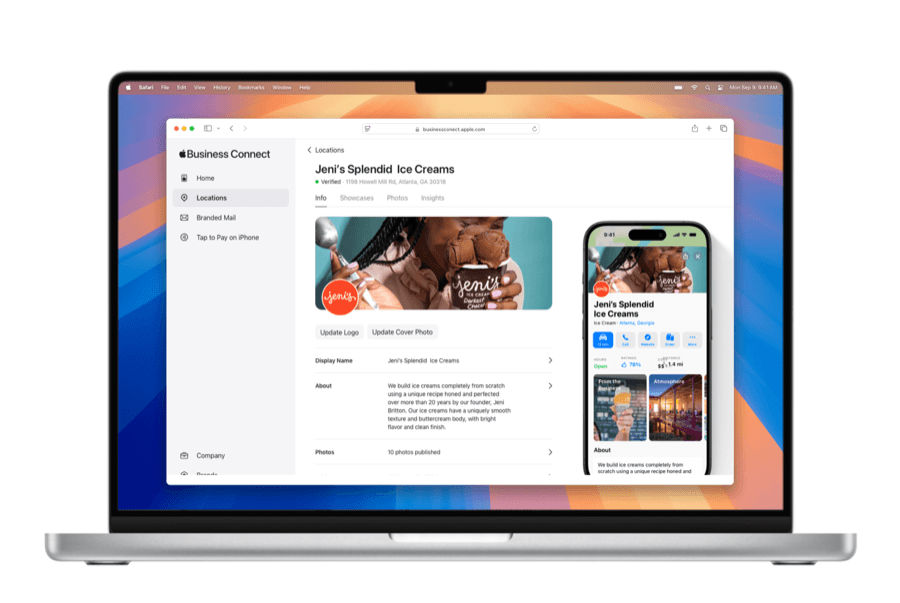
Before you start
Get these ready so verification goes smoothly:
- A business Apple Account (Apple ID), not your personal one. A dedicated business account avoids access headaches later.
- Recent official documents showing your business name and address (a utility bill, licence or registration), in case you are asked to verify by document.
- A monitored business phone for phone or SMS verification.
- Your exact NAP (name, address, phone) as it appears on your website and Google Business Profile, so everything matches.
A note on eligibility: Apple’s listings are oriented to real, findable locations. If you are a service-area business with no public storefront, verification can be harder than it is for a shopfront, so have your documentation ready.
How to claim and verify your listing
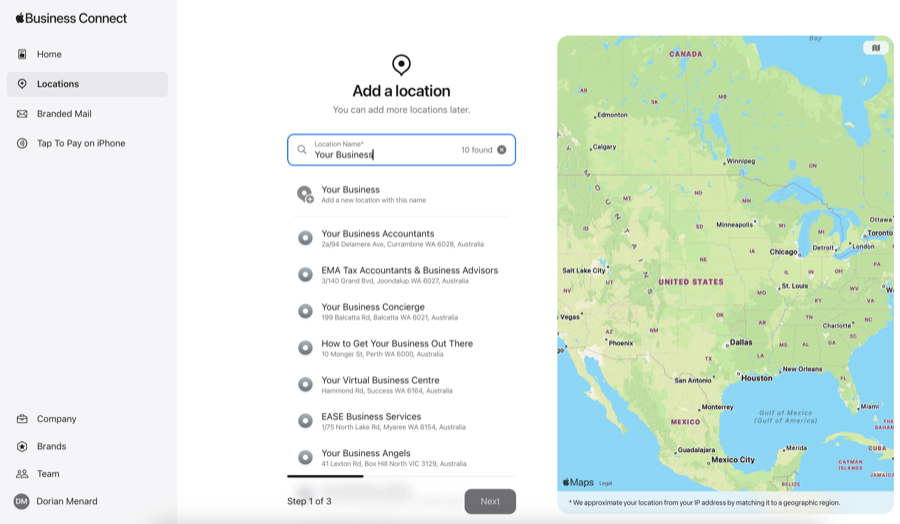
Step 1: Sign in and find your business
Go to business.apple.com on a desktop or laptop and sign in with your business Apple Account (create one if needed). Search for your business by name and suburb. If Apple already has a listing, choose to claim it; if not, add it as a new location. Enter the address precisely, including any unit or suite number, so the map pin lands correctly.
Step 2: Enter your core details
Add your trading name (the name on your signage), full address, main phone number and primary category. Choose the most specific category you can (“Coffee Shop” rather than “Restaurant”), because it improves how you surface for relevant searches. Double-check every field before moving on.
Step 3: Verify ownership
Apple confirms you actually own or manage the business before it hands over control. Depending on your business, you may verify by phone call or SMS code, by submitting documents (utility bill, licence), or by domain (adding a TXT record to your DNS). Document and domain verification take longer than a phone code, so allow a few business days. Until you are verified, you cannot manage the listing.
Optimising the listing
Claiming is the floor, not the finish. Once verified:
- Add real, high-quality photos: storefront, interior, products, team. Stock photos do not build trust.
- Use Showcases to promote time-sensitive offers. They run for a set period and need Apple approval, so plan a few days ahead and keep the imagery and text clean to avoid rejection.
- Set up Actions where relevant (order, reserve, book) so an iPhone user can act without leaving Apple’s apps.
- Keep hours accurate, especially public holidays. A wrong “open” status is one of the fastest ways to annoy a customer.
For multi-location businesses, Apple’s platform manages locations under a brand so you can apply brand-level changes (like a logo or website) across every location at once, while keeping each location’s address and hours specific.
How reviews work on Apple Maps (they aren’t actually Apple’s)
One thing that catches a lot of business owners out: Apple Maps does not have its own reviews. The star ratings and review snippets you see on an Apple Maps place card are pulled from third parties, most often Yelp, and sometimes TripAdvisor, OpenTable, or a category-specific source (BrightLocal’s Apple Maps optimisation guide and Local Search Forum discussions both confirm this is unchanged in 2026).
Two practical consequences:
- You cannot reply to “Apple Maps reviews” from inside Apple Business, because they are not Apple’s to begin with. To manage them, you have to manage the upstream source: claim and respond on your Yelp listing, your TripAdvisor profile, your OpenTable page, whichever Apple is pulling from for your category.
- The rating shown on Apple Maps will only ever be as fresh and accurate as that upstream listing. A neglected Yelp page with three angry old reviews can drag down what an iPhone user sees, even if your Google reviews are great.
If you cannot work out which source Apple is using for your listing, open your Apple Maps place card on an iPhone and tap into the reviews; the source name is shown above the snippets.
Keep it consistent and current
Two habits keep your Apple presence working. First, consistency: your name, address and phone should match your Google Business Profile and your other listings exactly, which is the same NAP discipline that underpins all local SEO. If you are cleaning up your listings, do it across the board, our guide to local citations covers how to audit them properly. Second, maintenance: refresh photos, update hours and post Showcases as things change. An active, accurate listing is a trust signal; a stale one quietly costs you customers.
Where Search Scope fits
Apple Maps is one of the easiest local wins to claim and one of the most commonly ignored. We set it up and keep it aligned with your Google Business Profile and the rest of your listings as part of our Perth-based SEO services. If you would rather have your whole local presence handled properly, across Google, Apple and the directories that matter, and we will get you on the map where your customers actually look.
FAQ
Is it still called Apple Business Connect?
Not quite. Apple Business Connect was the tool for managing your Apple Maps listing; in April 2026 Apple folded it into a broader platform called Apple Business. If you had already claimed a listing, your data moved across automatically. You now manage everything from business.apple.com.
Why does Apple Maps matter if I already have a Google Business Profile?
Because most Australian phones are iPhones, and they use Apple Maps and Siri by default, not Google. A Google-only presence simply does not reach those users. Claiming your Apple listing covers the map a large share of your local customers actually open.
How do I verify my business?
Depending on your business, Apple offers phone or SMS code verification, document verification (a utility bill or licence), or domain verification (a DNS TXT record). Phone codes are quickest; document and domain methods take a few business days.
Does it cost anything?
No. Claiming and managing your Apple listing is free.
What if my details are different on Apple and Google?
Fix them. Inconsistent name, address or phone details across platforms undermine trust and confuse search engines. Pick one exact format for each and use it everywhere, on Apple, Google, and every directory.