
Merchant Center Feed and Diagnostics: Fixing Errors, Warnings and Disapprovals
How to read Merchant Center diagnostics: the five product and account states, what preemptive item disapproval means, and the feed errors worth fixing first.

- Merchant Center has five states, not two. Product warning, product disapproval, preemptive item disapproval, account warning and account suspension all behave differently and only one of them needs a review request.
- Preemptive item disapproval is the one that catches people out. It is triggered by a price or availability mismatch between your data and your landing page, and it needs a review to clear, exactly like a suspension.
- The “Prioritised fixes” toggle is on by default and hides low-impact issues. If your diagnostics look clean, check whether you are only being shown part of the list.
- GTIN is not a blanket requirement. Google lists it as “it depends”, and misusing the identifier exists attribute to dodge it is what gets products disapproved.
- Google has announced a 500 by 500 pixel minimum for all product images, with enforcement starting 31 January 2027. Most stores have older assets that will not clear it.
Feed errors get treated as a technical chore, which is why they pile up. A product drops out, someone re-uploads the feed, the count goes down, and nobody asks what the underlying issue actually was.
That works until the day the account is suspended and it turns out the diagnostics have been telling you for months. Merchant Center does report the problem. It reports it in a screen that hides part of its own list by default, using state names that sound interchangeable and are not.
This is how to read it properly: the states, what each one costs you, and the errors that are worth your morning.
Where Merchant Center diagnostics actually live
Product issues sit under Products, then the Needs attention tab. Account issues sit in a banner at the top of the account, and also under Needs attention behind a link called view setup and policy issues. Those are two different lists and merchants routinely work one while the other is what is actually hurting them.
Google’s documentation on issues in Merchant Center also describes the Issue Details Page, a per-issue view that estimates the business impact of an issue, including lost click potential, and lets you download a full list of affected products as a CSV. The download is the useful part. Working from the on-screen sample means fixing the products Google happened to show you rather than the ones you have.
For products, you can filter the list by issue impact, label, status, title, or what needs attention. Filter by impact first. A store with 4,000 SKUs and 900 issues does not have 900 problems, it has four or five, repeated.
The five states your products can be in
The vocabulary matters because the remedy is different for each one.
| State | Scope | What still serves | How it clears |
|---|---|---|---|
| Product warning | Single product | Product still shows, performance may be limited | Fix the data, no review needed |
| Product disapproval | Single product | Nothing for that product | Fix the data, product is re-reviewed automatically |
| Preemptive item disapproval | Affected products | Nothing for those products | Requires a review request |
| Account warning | Whole account | Everything shows, performance may be limited | One courtesy review inside the warning period |
| Account suspension | Whole account | Nothing | Review request, subject to a cool down |
The first two are the ordinary run of feed maintenance. Warnings are early notice, and Google states plainly that unresolved warnings can turn into disapprovals, so a store carrying a permanent warning backlog is not stable, it is early.
Preemptive item disapproval is the state worth learning. Google applies it when the price or availability in your product data does not match your landing pages, and describes it as erring on the side of caution: products likely to violate the requirements get disapproved before a violation is confirmed. Unlike an ordinary disapproval, fixing the data is not enough on its own. A review is required to resolve it.
Account warnings run on a clock. If you do not request a review during the warning period, Google reviews the product data and website once more at the end of it, and if anything is unresolved the account is suspended. Doing nothing is a decision.
Prioritised fixes is hiding issues from you by default
This is the single most useful thing to know about the diagnostics screen, and it is buried.
The Needs attention page has a prioritised fixes filter that shows only issues Google estimates will have a medium or high impact on performance. Google is explicit that when the toggle is on, issues with little to no impact may not be displayed at all. The toggle is the default state for accounts where Google can estimate product performance.

The filter does not clear the low-impact issues. It stops showing them to you.
The logic is reasonable. The consequence is not. Low-impact issues are exactly the accumulation that turns into an account-level judgement, and the pattern behind most suspensions we see is not one severe problem, it is a stack of small ones. A merchant who only ever looks at the prioritised view can be carrying a long tail of issues they have never been shown.
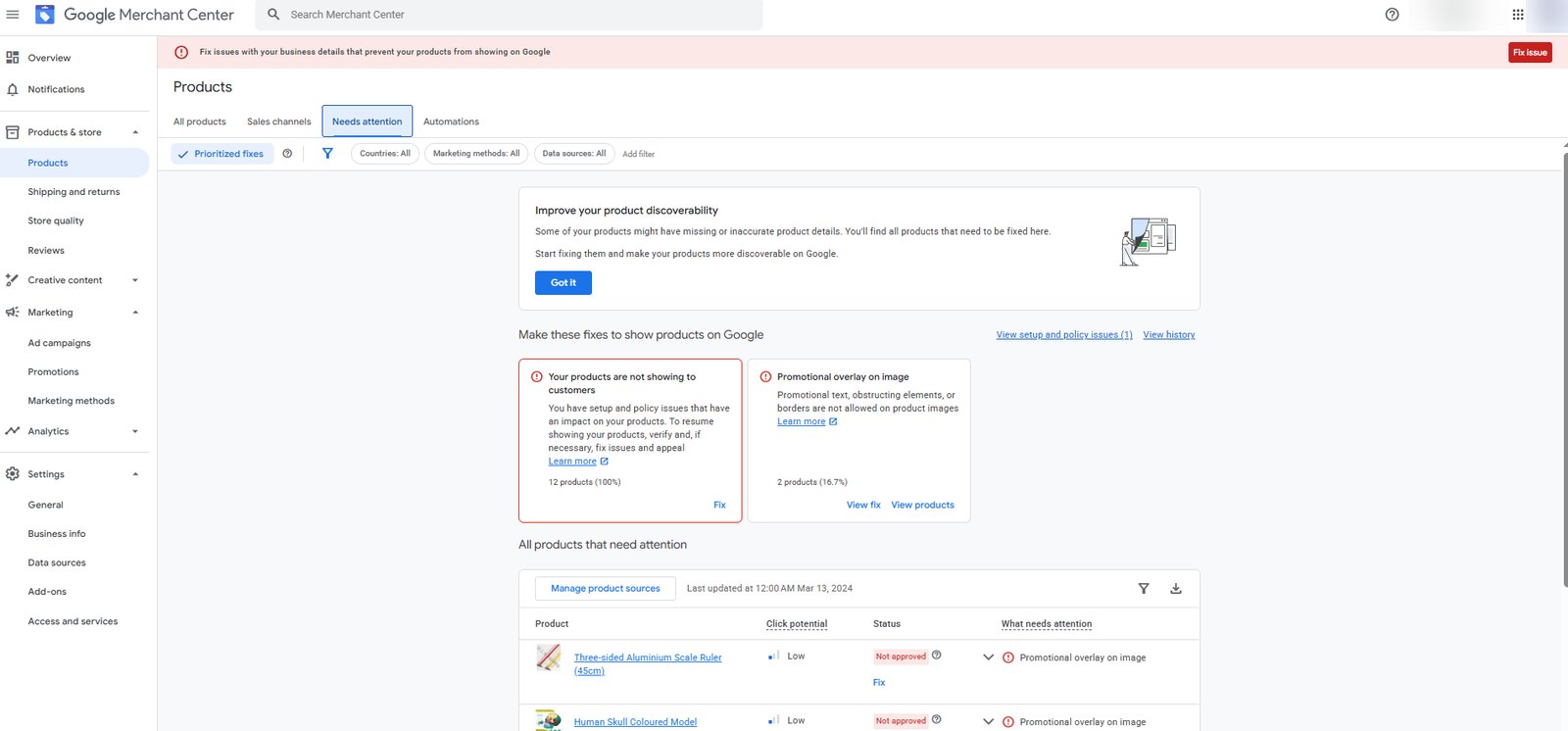
Note the toggle sitting on by default at the top left, and that the two cards below it are account-level rather than product-level. The products underneath are disapproved for promotional overlay on their images, which is a feed problem. The banner across the top is not.
Turning that toggle off is the first thing we do on any account we are handed, before reading a single product row. It is the only way to know whether you are looking at the account’s real issue list or Google’s edited version of it, and the gap between the two is routinely the part of the story the merchant did not know existed. Do it monthly on your own account. If the number surprises you, that is the point.
Price and availability mismatch: the disapproval that behaves like a suspension
Price and availability mismatches produce more disapprovals than anything else, and they are usually not a data entry problem.
Google’s landing page requirements set the rule that explains most of them: automatic crawlers capture the page after initial loading, and whatever product data is displayed at that moment is treated as final. A script that rewrites the price after load, for currency conversion, geo pricing, a member discount or a sale timer, is invisible to you and decisive to Google.
Availability has a wider surface than merchants expect. Google requires the availability value to match your landing page, your checkout pages, and your structured data. Product schema saying out_of_stock while the page says in stock is a mismatch even when the page and the feed agree with each other.
Two specifics that catch people:
- If an item is out of stock, the price still has to be clearly visible on the landing page. Themes that hide price on sold-out products create a mismatch by omission.
- Preorder and backorder both require an availability date, and Google wants that date on the product page too, not only in the feed.
Google offers automatic updates as a mitigation, which lets it correct price and availability in your data from what it reads on your pages, and it says this reduces the risk of preemptive disapproval. Turn it on if your catalogue moves quickly. It is a safety net, not a fix: it patches the symptom while the underlying inconsistency stays live on the site, and the site is what gets reviewed.
If price consistency is failing across a whole catalogue rather than a handful of SKUs, the problem is usually on the site rather than in the feed, which is covered in the Merchant Center website requirements.
Product identifiers: GTIN is not the blanket requirement you have been told
A lot of feed advice states that GTIN is required. It is not. Google’s product data specification lists GTIN as “it depends”, strongly recommended where one is available.
What matters is the honesty of the declaration. The identifier exists attribute is how you tell Google a product genuinely has no identifier, and Google restricts when you may set it to no:
- Media items where the GTIN is unavailable, noting that ISBN and SBN codes are accepted as GTINs.
- Apparel items where the brand is unavailable.
- Any other category where the product genuinely has no GTIN and no combination of MPN and brand.
Google then adds the line that costs merchants their products: if the product does have a unique identifier and you submit identifier exists as no, the product may be disapproved.
If you would rather work from a sheet than the specification, this is the product feed spreadsheet we attach to every paid Merchant Center report. It lists every field Google expects, whether it is required, the format rules, and the mistakes that most often trigger a disapproval. Copy it and work down the columns against your own feed.
This is where fabricated barcodes come from. Someone hits a required field warning, cannot find a real GTIN, and either invents one or switches the flag off across the catalogue. Both are worse than the original problem. Invented GTINs are a policy issue rather than a data issue, and they escalate past the product level.
For your own manufactured products with no barcode, the correct answer is brand plus MPN, with identifier exists set honestly.
Titles and descriptions, and the new way to declare AI-written copy
Title and description are both required. Title is plain text up to 150 characters, description up to 5,000.
The change worth knowing about is structural. Google now accepts structured title and structured description attributes, each carrying a digital source type sub-attribute. Set it to default for human-written copy, or to trained algorithmic media to declare that the text was generated with AI. If you submit nothing, Google treats the copy as default.
That is a disclosure mechanism, not a penalty, and it is a reasonable read of where enforcement is heading. Google has built a field for declaring machine-written product copy, and stores generating descriptions at scale now have a documented way to be straight about it. Whether it becomes an expectation rather than an option is not something anyone outside Google knows yet.
Worth saying plainly: none of this makes generated product copy good. AI is useful for filling a catalogue quickly. It does not make a description accurate, and an inaccurate description is a misrepresentation problem, not a data quality one.
Image rejections, and the 500 by 500 rule arriving in January 2027
Image link is required, and the requirements are more specific than most feed tools enforce.
Google’s current rules: accepted formats are JPEG, WebP, PNG, non-animated GIF, BMP and TIFF. No promotional text, no watermarks, no borders. No placeholder or generic images. Do not scale an image up or submit a thumbnail. The URL has to be crawlable, which means checking that robots.txt is not blocking Googlebot or Googlebot-image.
Two things are changing, and both deserve a diary entry.
The size floor is moving. Google has announced new image size requirements of at least 500 by 500 pixels for all product images, with enforcement beginning 31 January 2027. Plenty of stores are still serving 250 pixel product thumbnails to the feed from an older theme. Auditing that now is cheap. Auditing it after enforcement starts is a catalogue-wide outage.
AI-generated images have to keep their metadata. This one runs against normal image SEO practice, so read it carefully. Google’s specification requires that images created with generative AI carry metadata indicating that, for example the IPTC DigitalSourceType TrainedAlgorithmicMedia tag, and instructs merchants not to remove embedded tags of that kind. It names three values to preserve: TrainedAlgorithmicMedia for model-generated images, CompositeSynthetic for composites containing synthetic elements, and AlgorithmicMedia for purely algorithmic images.
Stripping metadata is a sensible default for images on your own website. For product images in a Merchant Center feed, stripping the AI provenance tag off a generated image is now the opposite of what Google asks for. Additional images get more latitude than the main one, since they may show staging, the product in use, graphics or illustrations, up to ten per product, but the same metadata rule applies.
The account settings that stop a review before it starts
Merchants sometimes find their products stuck in Pending with no error to fix. Usually a prerequisite is missing rather than anything being wrong.
Google lists what has to be in place before a data source can be sent for review at all:
- Shipping settings configured at account or item level, for countries where shipping is required.
- A data source created for the target country.
- A claimed and verified website URL.
- A verified business address.
- Tax settings at account or item level, for the United States only.
The initial review takes up to 3 to 5 business days for Shopping ads and can run longer for other programs, and Google warns that further changes to your product data or website during that window can extend it. That is worth knowing before you spend the waiting period tinkering.
Tax is the item that trips Australian stores, in the opposite direction to the US. Australia sits in the group of countries where the price attribute must include GST or VAT and match the landing page price, while the United States and Canada require taxes to be excluded from price and shown at checkout instead. A store copying a US feed template into an Australian account produces a price mismatch on every single product.
Crawlability: the disapprovals with nothing to do with your data
A meaningful share of product-level issues are not data problems at all. Google lists the website conditions that commonly cause product disapprovals, and the list is worth checking before you touch a feed:
- Placeholder content and broken links.
- Missing or inconsistent information, and inaccurate product descriptions.
- Categories that disagree between the website and the product data.
- A robots.txt configuration blocking Googlebot or Googlebot-image.
- Landing pages unavailable through server errors or slow loading.
- A landing page that redirects to a generic page instead of the specific product page.
The robots.txt one is the quiet killer, because a rule added to stop scraping or reduce server load also stops the crawler that decides whether your products are approved. Blocking Googlebot-image while leaving Googlebot alone produces image-specific disapprovals across the catalogue with no obvious cause in the feed.
What order to work a diagnostics list in
Diagnostics reward triage rather than volume.
- Read the account-level list first, behind view setup and policy issues. An account issue makes every product fix irrelevant until it is cleared.
- Turn off prioritised fixes and download the full CSV, so you are working from the real list.
- Group by issue, not by product. Sort the CSV by issue type and you will usually find three or four causes behind hundreds of rows.
- Fix crawlability before data. If Googlebot cannot reach the pages, corrected data will be compared against nothing.
- Fix the source, not Merchant Center. Editing values in the interface while the feed keeps pushing the old ones just re-creates the issue at the next fetch.
- Let the crawl catch up. Google says a fresh crawl after live technical fixes usually completes within 24 to 48 hours.
- Only then request a review, and only for the states that need one.
Product data has a genuine advantage here that is easy to miss. Editing product data through your upload method or in Merchant Center triggers an automatic re-review of the affected products, and removing violating products from the data source needs no review request at all. Product-level work does not cost you an appeal. Save the review request for the states that actually require one.
Common questions about Merchant Center diagnostics
What is the difference between a disapproval and a suspension?
A disapproval affects individual products and leaves the rest of the account serving. A suspension pulls everything. The confusing middle case is preemptive item disapproval, which affects products but needs a review request to clear, so it behaves administratively like a small suspension.
Do I need to request a review after fixing feed errors?
For ordinary product disapprovals, no. Editing the product data triggers an automatic re-review. Preemptive item disapprovals and anything account-level do need a review request.
Why do my products say Pending?
Either they are in the initial review, which takes up to 3 to 5 business days for Shopping ads, or a prerequisite is missing: shipping settings, a data source for the target country, a claimed and verified URL, or a verified business address.
Is GTIN required for every product?
No. Google lists it as “it depends” and strongly recommends it where one exists. Use brand and MPN where there is no GTIN, and only set identifier exists to no in the cases Google names. Never invent one.
How often should I check diagnostics?
Weekly for a catalogue that changes, monthly at minimum for one that does not, and with prioritised fixes turned off at least once a month so you see the whole list. Item disapprovals accumulating unnoticed are what turn into an account-level signal.
Will fixing every feed error prevent a suspension?
No. A clean feed is necessary and not sufficient. Most account-level suspensions we handle are decided on the website, not the data, which is why a Google Merchant Center suspension usually needs a site audit rather than a feed audit.
When a feed problem is not a feed problem
The tell is scope. A handful of products failing on the same attribute is a feed problem, and you can work it from the CSV. An entire catalogue failing on price, availability or images at once is almost never the feed. It is one thing on the site or in the account settings, replicated across every row.
That is the point to stop editing attributes. Fixing 900 rows of a symptom is a week you do not get back, and the cause is still live when you finish.
If the account is already suspended rather than just noisy, the diagnostics are not where the answer is, and the trigger is usually misrepresentation rather than data quality. If you are setting up a new account or migrating a catalogue and would rather not learn these states through enforcement, that is what our Merchant Center and Shopping setup work covers.
Written by Dorian Menard, founder of Search Scope. Specifications verified against Google’s Merchant Center documentation in August 2026. Google’s requirements change, so check the linked pages before acting on anything time-sensitive.