How to Build Trust Signals and Pass Google Verification Without Getting Stuck
Last Updated on 12 January 2026 by Dorian Menard
Google’s automated system demands proof of legitimacy before verification begins, so establishing digital footprints like branded emails and Search Console data is vital. This groundwork unlocks easier approval methods, while strictly avoiding any profile edits for 72 hours post-verification prevents immediate automated suspensions.
Fighting with Google’s bots is exhausting, especially when standard google business profile verification tips leave you stuck in limbo.
We are revealing the undocumented shortcuts and specific evidence you need to prove your business is real to the algorithm. Stop guessing and use these insider methods to bypass the red tape and finally get your listing live.
- Why Google Verification Is a Minefield and How to Prepare
- Nailing the Video Verification for Your Business Type
- Insider Tricks to Bypass Common Roadblocks
- The Post-Verification Danger Zone: How to Avoid New Problems
- Troubleshooting When Your Verification Is Stuck or Fails
Why Google Verification Is a Minefield and How to Prepare
Why the Verification Process Feels Broken
Google verification is properly frustrating and wildly inconsistent. It isn’t your fault. The system is built to block fake profiles but often hammers legitimate businesses instead.
Google now leans heavily on AI verification checks. These bots scour the web for specific “trust signals”. Without these digital footprints, the process becomes a nightmare.
The secret isn’t trying to game the system. You simply need to hand it the proof of legitimacy it craves before you begin.
Build Trust Signals Before You Even Start
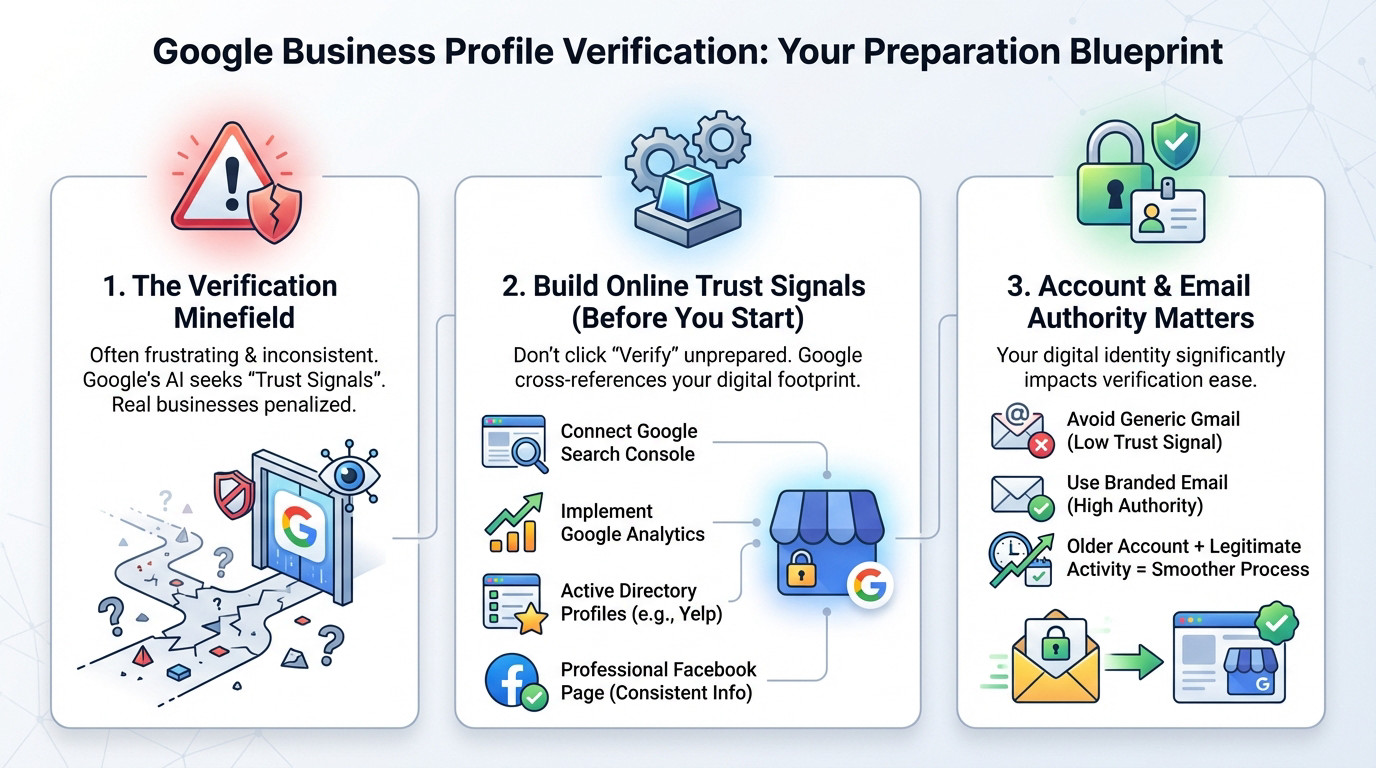
Hitting “Verify” without preparation is a massive error. You must build a trust ecosystem first. Google cross-references data to ensure you are real. That is the key.
To trigger those smoother verification options, you have to establish your footprint elsewhere first.
- Connect your website to Google Search Console.
- Set up Google Analytics on your site.
- Create and maintain active profiles on recognised directories like Yelp.
- Have a professional Facebook page with consistent info.
Your Account’s History and Email Matter—A Lot
Never use a generic Gmail address for this. To Google, an email like “sydneyplumber23@gmail.com” signals low trust. It is an immediate red flag for the algorithm.
A branded email address like contact@yourbusiness.com.au massively boosts your authority. It acts as simple proof that you are an established entity. It screams legitimacy.
The age and history of your Google account play a role too. An older account with legitimate activity often unlocks easier verification paths.
Pro Tip: Do not use your daily Gmail account to manage and own your business’ GBP! Create a separated one, fill out all the details (it’s OK to have multiple accounts under your name) and season it a bit by using Gmail or Youtube. This will avoid you any troubles in the future.
Nailing the Video Verification for Your Business Type
For Storefronts: Show Your Permanent Signage
For a brick-and-mortar shop, Google wants proof of two things: where you are and that you actually run the place. The absolute deal-breaker here is your permanent signage. It cannot be a temporary banner; it must match your business profile name exactly.
Start your video outside, capturing the street sign and your shopfront clearly. Walk inside to show the commercial space customers see. Finally, film a management-only area, like unlocking the register, using the EFTPOS terminal, or showing your keys.
For Service Area Businesses (SABs): Prove You Operate
Service Area Businesses (SABs) without a shopfront face different rules. You aren’t trying to show a showroom. You simply need to prove the business exists and operates.
The best evidence is a branded vehicle with your logo. If not, show your marked trade tools. You can also show official registration docs, but mask sensitive info.
Use the “realtor method”: film yourself on a job site showing proof of work. The goal is linking your activity to a location. It proves you are legitimate.
For Home-Based Businesses: Debunking the Signage Myth
Let’s kill a massive myth: you do not need a commercial sign at your home. Google doesn’t expect it. Faking this often triggers a suspension.
Film the exterior with the street number clearly visible. Then, walk in and show your dedicated workspace, even if it is just a desk.
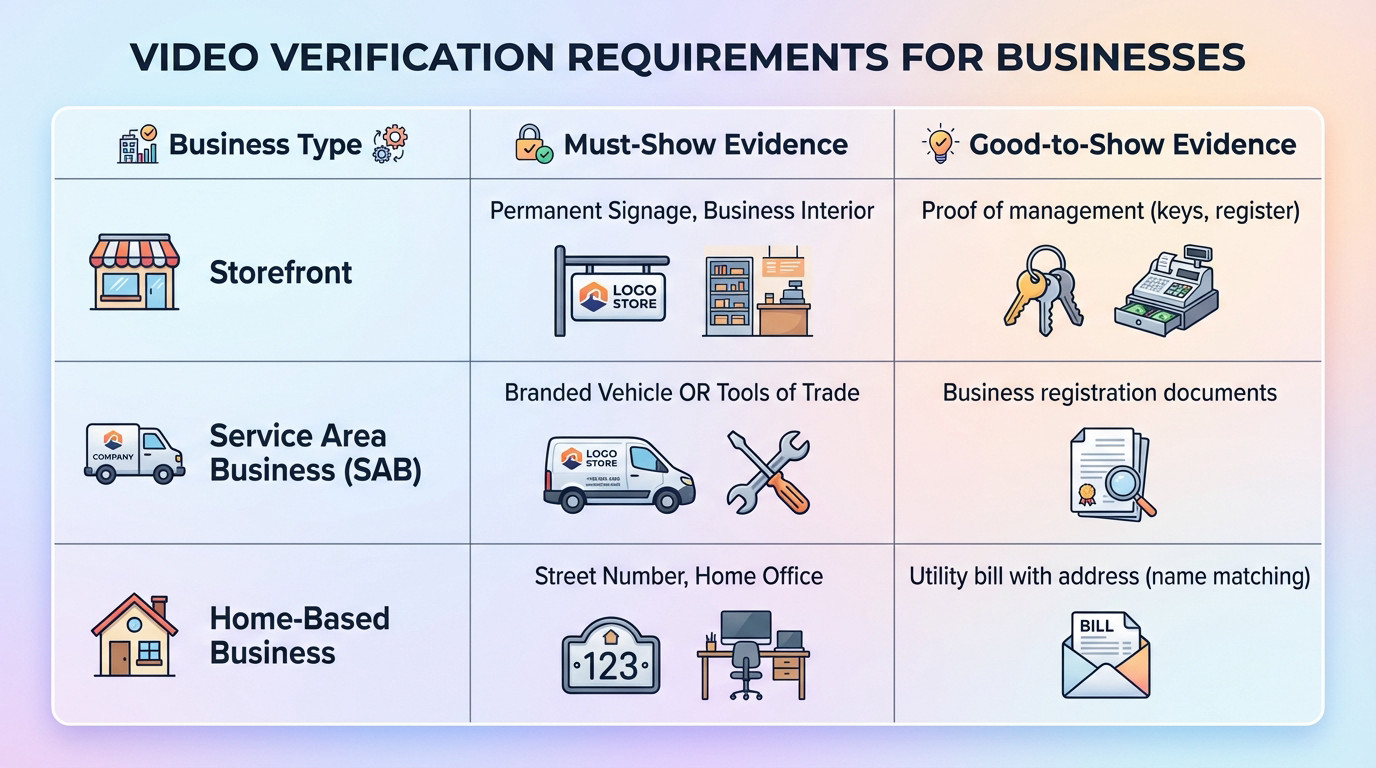
To clarifiy, here is a summary of the evidence you need to provide based on your business type.
| Business Type | Must-Show Evidence | Good-to-Show Evidence |
|---|---|---|
| Storefront | Permanent Signage, Business Interior | Proof of management (keys, register) |
| Service Area Business (SAB) | Branded Vehicle OR Tools of Trade | Business registration documents |
| Home-Based Business | Street Number, Home Office | Utility bill with address (name matching) |
Insider Tricks to Bypass Common Roadblocks
Mastering the video is one thing, but there are other tricks Google doesn’t shout from the rooftops. Here are a few expert manoeuvres to get you out of sticky situations.
Do Not Speak During the Video!
Do not speak during the verification video. Google’s system is not evaluating your voice, your intentions, or your explanations. It does not care who you are. It only cares about seeing the exact visual evidence required for your business type.
Talking adds nothing and can even confuse the algorithm. Keep the video silent and focus purely on showing the elements listed above.
Video Quality Does Matter
Use a clean, stable, high-quality video. A shaky phone, bad lighting, or a camera constantly drifting out of focus is enough to trigger an automatic rejection. Walk slowly, hold your device steady, make sure the subject stays sharp, and avoid blown-out bright areas or dark shadows.
The goal is clarity. If Google’s system cannot clearly see what you are trying to prove, it will fail you without hesitation.
Find Out Who Really Controls the Listing
Sometimes, the roadblock is that someone else has already claimed your profile. It might be an old agency or a disgruntled ex-employee holding the keys. You need to identify them first.
Go on Google Maps, find your existing listing, click on Own this business and Google will show you this window:
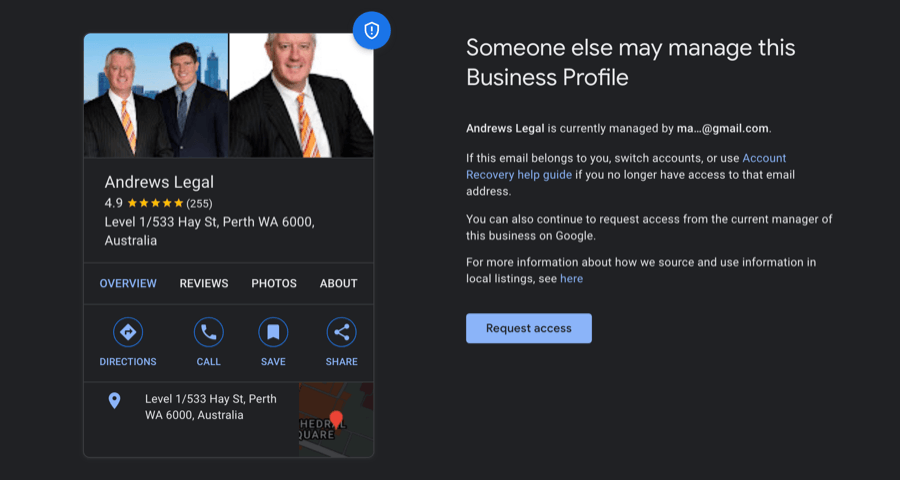
Google will show you a masked version of the current owner’s email, like ma****@gmail.com. This is often enough to jog your memory and recognise them.
Bulk Verification for Agencies and Multi-Location Businesses
Google quietly imposes a strict limit of 10 verifications per week per account. This restriction becomes a logistical nightmare for agencies or growing franchises. You simply cannot move fast enough.
The official fix is requesting bulk verification. If you manage 10 or more profiles for the same business, you can apply for this specific status. Once approved, that annoying weekly limit vanishes completely. It streamlines everything significantly.
An unofficial trick for isolated cases involves using different IP networks to bypass the tracker. Use this with extreme caution.
Why “Instant” Verification Is Rarely Instant
Google sometimes promises verification in five minutes. Do not hold your breath waiting for it. That claim is often more of a marketing target than an operational reality for most businesses.
Even with “instant verification,” your profile might sit in “processing” status for several days. This delay is usually due to a manual review triggered by the AI safety checks.
Interpret this delay as an extra security check rather than a failure. If nothing moves after 5 business days, it is time to take action.
The Post-Verification Danger Zone: How to Avoid New Problems
You are verified. Good on you. But don’t celebrate just yet. The period immediately following verification is a potential minefield.
The Golden Rule: Don’t Touch Anything for 72 Hours
This is the single most important piece of advice here. Once your profile is verified, do not make ANY edits for at least 48 to 72 hours.
Google’s algorithm is incredibly paranoid about immediate changes. Tweaking your name, adding a category, or even shifting opening hours right after verification looks like suspicious activity to the bots. It screams risk.
This often throws you into an endless verification-suspension loop. Just sit tight and let the status stabilise.
Major Edits That Will Trigger Re-Verification
After the safety period, you can start refining your profile. But you must know that some modifications are considered “major” and will force a re-verification.
The risk is even higher if these edits are performed from a Google account different from the one that handled the initial verification. Here are the usual suspects:
- Changing the business name.
- Modifying the physical address.
- Changing the primary phone number.
- Modifying the primary category.
Planning Your Next Moves Safely
Once the 72-hour window has passed, you can start working on your profile. The key is to do it progressively. Do not change everything in a single sitting.
Focus on adding information rather than altering the fundamentals. Add photos, create posts, and reply to reviews. To go further, you should focus on the optimisation of your Google Business Profile to attract paying clients.
Troubleshooting When Your Verification Is Stuck or Fails
Look, despite your best efforts, sometimes the system just breaks. If you are stuck in verification limbo, here is the game plan to get out.
Using Google’s Hidden Verification Tool
Google keeps a troubleshooting tool tucked away that gives you the real status of your listing. It is your absolute first stop. Most people never find it.
This tool scans every profile linked to your account for specific blocks. It walks you through diagnostic steps and points you to the right contact form. If a fix is needed, it tells you.
It is usually the quickest path to a human, rather than clicking around generic help pages.
Is It a Delay or a Technical Error?
You must distinguish between a standard “processing delay” and an actual “technical error”. One requires patience; the other demands immediate action. Mixing them up wastes time.
Cross-reference your status immediately. If your dashboard says “Processing” but the tool shows green, it is just a delay. However, if the tool flags a “Failed” status or an error, you are officially stuck and need to move.
When and How to Escalate to Support
Do not abuse the support channel. Only escalate if five business days have passed or the tool confirms a technical failure. Sending tickets too early can backfire.
When you do reach out, come armed with data. You need these exact details to get a response:
- The Business Profile ID found in your Advanced Settings.
- A short, punchy summary of the issue.
- Any video or photo proof you already uploaded.
- A screenshot of the specific error message.
Getting verified is a strategic process, not a lottery. Build your digital footprint first, provide the exact video evidence Google demands, and strictly avoid edits for 72 hours after approval. If you hit a snag, use the troubleshooting tools rather than guessing. You have the roadmap; now go secure your profile.
FAQ
How can I verify my Google Business Profile without a postcard?
Honestly, the postcard method is becoming a bit of a dinosaur, and Google knows it. While you can’t always force Google to give you a specific method, you can tip the odds in your favour. The trick is establishing trust signals before you even click “verify”.
Make sure your website is verified in Google Search Console using the exact same email address you use for your Business Profile. This tells Google you already own the digital asset, which often triggers the faster “instant” or video verification options instead of the slow snail-mail route.
Why does my Google verification video keep getting rejected?
This is incredibly frustrating, but it usually boils down to one missing piece of the puzzle: proof of management. It’s not enough to show that the business exists; you have to prove you run it. A lot of people film the sign and the street, but forget the most important part.
You need to film yourself unlocking the front door, operating the payment terminal, or opening a branded vehicle with your keys. If you’re a Service Area Business (SAB), don’t just show a business card; show your tools of the trade and your branded uniform. Google needs to see you have access that a random customer wouldn’t have.
Is there a trick to see who has already claimed my business listing?
Yes, and it saves so much time compared to fighting with support. If you try to add your business and it says it’s already claimed, don’t panic. There is a “hidden” tool at business.google.com/ad/info that is surprisingly helpful.
Type in your business name there, and it will often display a masked version of the current owner’s email address (like j****@gmail.com). Often, this is enough to jog your memory—it might be an old employee, an ex-agency, or a forgotten personal account. Once you know who it is, recovering access is much easier.
Can I edit my business details immediately after verification?
Please, for the love of your sanity, do not do this. I call this the “danger zone”. Once you get that green tick, your profile is on probation. If you change your name, category, or address within the first 72 hours, you are practically begging Google to suspend you.
Sit on your hands for at least three days. Let the data settle in Google’s database. Once that cooling-off period is over, make changes slowly—one edit at a time—rather than overhauling the whole profile in one go.
What should I do if my verification is stuck “in process” for weeks?
Google might tell you it takes 5 days, but if you’ve been waiting two weeks, something is stuck. First, check the Google Business Profile Help Tool to see if there is a technical error flagged on your account that isn’t showing on the main dashboard.
If the tool shows no errors, you likely have a “footprint” issue where Google isn’t convinced your business is real yet. This is the time to contact support, but go prepared: have your business registration docs and photos of your signage ready to upload. Don’t just wait and hope; after 5 business days, you need to nudge them.

Dorian Menard
https://searchscope.com.auI’m Dorian, founder of Search Scope and an SEO obsessed with ROI and lead generation. After a decade in the trenches, I’ve built and ranked digital assets for businesses across the world. I cut through the noise with data, automation, and strategies that actually convert. When I’m not scaling rankings, you’ll find me on a motorbike or setting chess traps — always planning three moves ahead.